
While browsing the web, you may come across an inspiring design, a useful interface detail, an interesting typography example, or a visual reference you want to revisit later. Until now, saving that inspiration often meant bookmarking the entire page, taking a separate screenshot, or trying to find the same content again later.
Overview
While browsing the web, you may come across an inspiring design, a useful interface detail, an interesting typography example, or a visual reference you want to revisit later. Until now, saving that inspiration often meant bookmarking the entire page, taking a separate screenshot, or trying to find the same content again later.
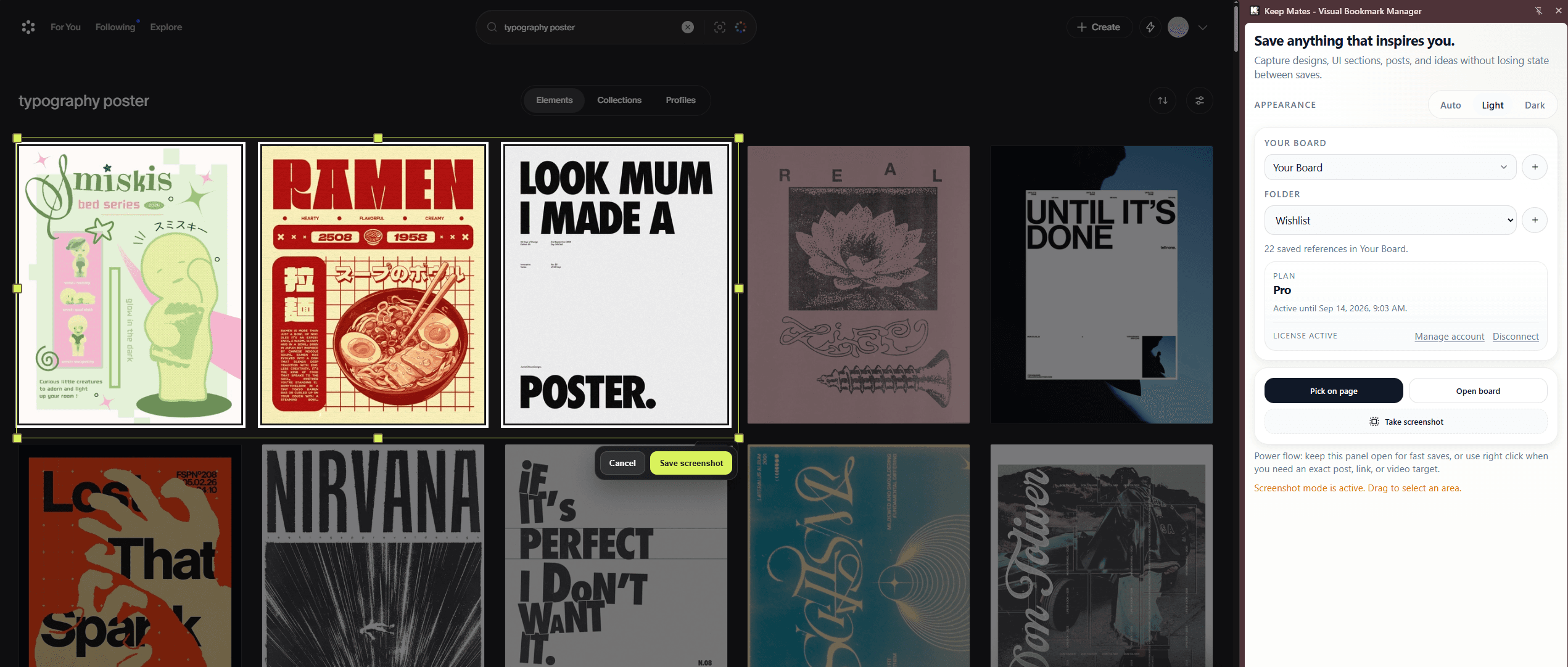
With the new Screenshot feature in the Keep Mates Chrome extension, you can now capture and save only the part of a webpage that matters to you.
Instead of saving an entire website, you can select a specific section, image, card, interface element, or design detail and add it directly to your Keep Mates library. This makes it easier to build a more focused and useful collection of visual references.
The new feature is especially helpful for designers, creative teams, developers, content creators, and anyone who collects inspiration while browsing the web.
What You Can Save with Screenshots
The Screenshot feature is designed for the moments when a small part of a page is more useful than the page as a whole. You can use it to save:
* Hero sections from inspiring websites * UI components and interface layouts * Typography and poster design examples * Product page sections * Interesting buttons, menus, or cards * Visual references for a new project * Design details you want to study later
This makes screenshot capture useful for building moodboards, collecting design patterns, researching competitors, preparing content ideas, or keeping track of references for an active project.
How to Use the Screenshot Feature
First, make sure your Keep Mates Chrome extension is updated. Open the extension panel and select “Take screenshot”.
You can then select the exact area of the webpage you want to capture. Once you finish selecting, click “Save screenshot” to add the image to your Keep Mates library.
Before saving, you can cancel the selection with the “Cancel” button. After saving, you can choose the board and folder where you want to organize the screenshot.
This makes it easy to separate references by project, client, campaign, moodboard, or personal interest. A screenshot saved for a client redesign does not have to get mixed together with personal inspiration or future project ideas.
Save Only What Matters
The Screenshot feature helps you keep your library focused. You do not need to save an entire webpage when you only want to remember one specific detail.
A single screenshot can preserve the visual context of a design much more effectively than a plain URL. Later, when you return to your board, you can immediately recognize why you saved the reference and what made it interesting.
This is especially useful when several pages from the same website look similar. Instead of scanning page titles or trying to remember which link contained a particular layout, you can browse the visual reference itself.
From Links to a Visual Reference Library
Keep Mates is designed to help you collect more than just links. With screenshot capture, you can now save the visual details that inspire you and keep them organized alongside your other references.
You can combine screenshots with saved pages, images, social posts, product references, notes, colors, and fonts. Together, these saves create a richer library for the way people actually research and create on the web.
Whether you are researching a new brand, preparing a moodboard, collecting web design inspiration, or studying interface patterns, the new feature helps you save ideas faster and revisit them more easily.
Keep Your Inspiration Organized
The value of a screenshot grows when you can find it again. That is why the Screenshot feature works together with Keep Mates boards and folders.
Use boards for larger contexts such as a brand project, a campaign, a trip, or a personal collection. Use folders to create more specific groups inside those boards, such as “Landing Pages”, “Typography”, “Navigation”, or “To Review”.
You can also add a short note while saving or return to the item later and record why it was important. This keeps the context close to the image instead of leaving you with a screenshot you no longer understand.
Update the Extension to Try It
The new Screenshot feature is available in the Keep Mates Chrome extension. Update the extension before trying it so you have the latest version of the panel and capture flow.
Once updated, open the extension panel, select “Take screenshot”, choose the area you want to keep, and save it directly to your board.
The next time you find a design detail worth remembering, you can capture the useful part in a few seconds and keep it ready for the next project.
FAQ
What is the Keep Mates Screenshot feature?
Short Answer
It lets you select and save a specific area of a webpage directly from the Keep Mates Chrome extension instead of saving the entire page.
Can I save a screenshot to a specific board or folder?
Short Answer
Yes. After capturing the area, you can choose the board and folder where the screenshot should be organized.
Do I need to update the Chrome extension?
Short Answer
Yes. Update the Keep Mates Chrome extension before using the feature so the latest screenshot controls are available.
Who is the Screenshot feature for?
Short Answer
It is useful for designers, developers, creative teams, researchers, content creators, and anyone who collects visual references online.
Related Reading
Continue with the most relevant follow-up guides.
If you are still comparing tools after this article, the best next step is to keep the linking contextual instead of jumping into a generic card grid. These follow-up articles extend the exact decision you are making here.
If this article made you compare adjacent options, read Best Visual Bookmark Manager for Designers in 2026. A deep, designer-focused comparison of the best visual bookmark managers in 2026 — Keep Mates, Eagle, Raindrop.io, Milanote, MyMind, and more.
If this article made you compare adjacent options, read Best Diigo Alternatives in 2026: A Practical Guide to Bookmarking and Research Tools. Compare the best Diigo alternatives in 2026, from Keep Mates and Raindrop.io to Linkwarden and Readwise Reader, with a practical guide to privacy, visual organization, and research workflows.
If this article made you compare adjacent options, read Raindrop vs Pocket (2026): Which One Is Better?. Raindrop or Pocket? In 2026, we compare Raindrop with Pocket's former read-it-later workflow, including the pros and cons and a better way to manage your digital archive.
For broader research, browse the full blog archive for more comparisons, bookmarking guides, and read-it-later alternatives.
Ready to organize what you save?
Use the same research habit inside a cleaner archive.
Keep Mates helps you save pages, images, posts, colors, and fonts into folders so the references you collect stay usable after the tab is gone.
