
 Add to Chrome
Organize
Boards
Use boards for visual grouping and broader thematic curation.
Boards are useful when the relationship between references matters visually. They help gather material around a direction, mood, project, or creative theme.
When to use a board
Use boards when you want to review related saves together rather than treat them as isolated items.
Boards work well for design directions, content themes, client exploration, and visual research.
- 1
Open Keep Mates and click Create project in the left sidebar.
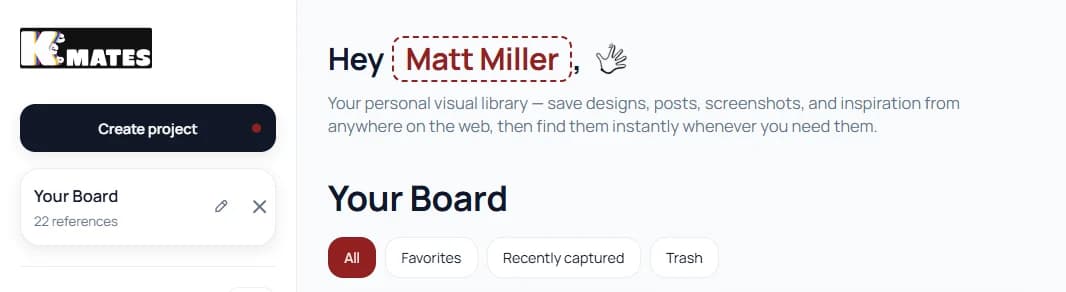
Boards start from the Create project button in the Keep Mates sidebar. - 2
Type the name of the new board or project in the create dialog.
- 3
Click Create to open the new board and start saving references into it.
Pro tip: Name boards by decision or theme, not by vague ideas. A board like Landing Page References is easier to reuse than something broad like Inspiration.
Name the board before it grows
A strong board name makes the rest of the archive easier to understand. The board should describe the kind of material it will hold, not just the mood of the moment.
Once the board exists, you can keep related saves together without scattering them across unrelated folders.
- 1
Use a concrete board name that still makes sense months later.
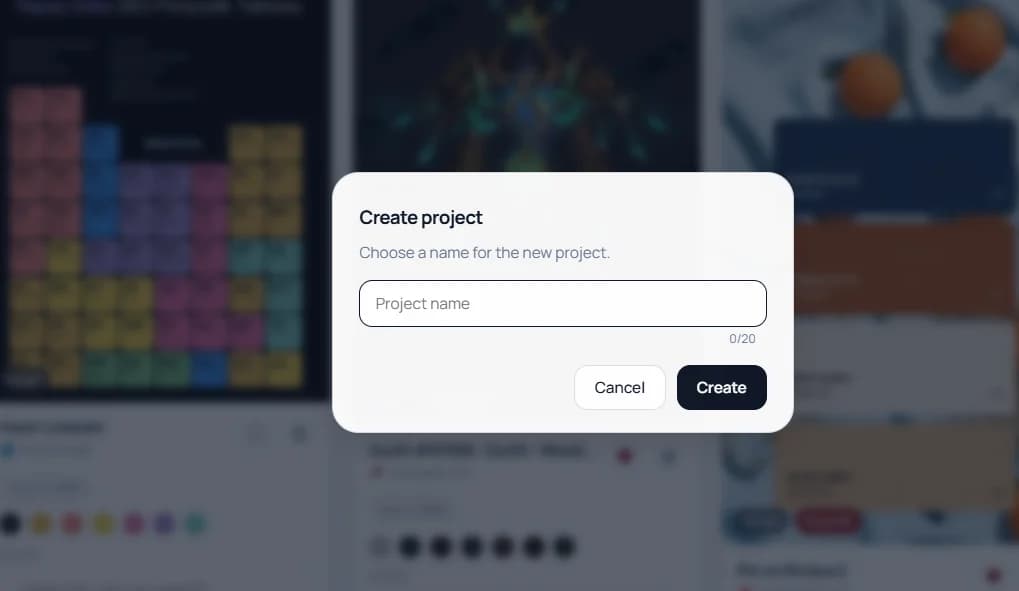
Choose a clear board name before you start filling it with references. - 2
Keep the board focused on one theme, project, or direction.
- 3
Start saving into that board immediately so it earns its structure.
Open the board from the side panel or shortcut
After the board exists, you can open it again directly from the Keep Mates side panel. This is the simplest way to jump back into your saved references without searching through the browser.
If you prefer keyboard flow, you can also open the board with Ctrl+Shift+Q instead of clicking through the panel.
- 1
Open the Keep Mates side panel from the extension.
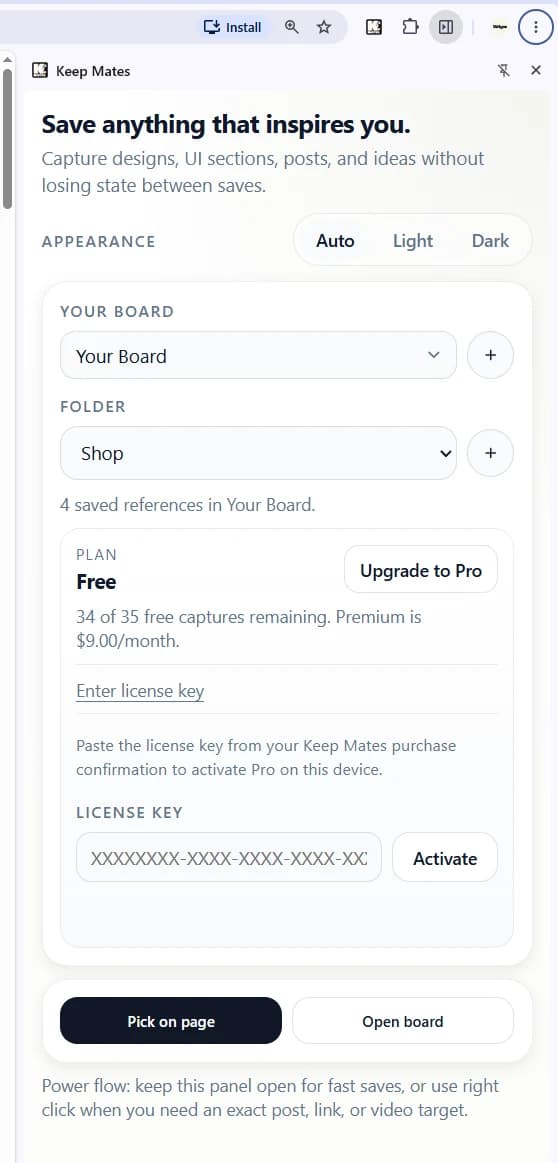
You can open the current board directly from the side panel or use the Ctrl+Shift+Q shortcut. - 2
Click Open board at the bottom of the panel, or press Ctrl+Shift+Q.
- 3
Keep Mates opens the current board so you can review, search, and organize saved references.
Pro tip: Use the side panel button when you are already saving something, and use Ctrl+Shift+Q when you want the fastest keyboard route back to the board.
Use the Open board button for direct access
The Open board button is designed as a quick jump point. It takes you out of the compact side panel and into the full board view where filters, search, folders, favorites, and layout controls are easier to use.
- 1
Keep the side panel open while browsing.
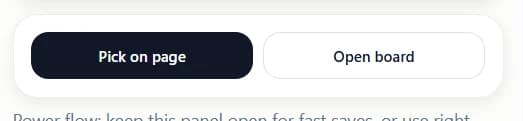
The Open board button sits next to Pick on page in the side panel footer. - 2
Use Open board whenever you want the full board interface instead of the compact save view.
- 3
Continue organizing inside the board once it opens.
Keep boards opinionated
A board should stand for something specific. If it becomes too broad, it becomes harder to use as a decision-making surface.