
 Add to Chrome
Get Started
Installation
Install Keep Mates and get the extension ready for everyday use.
Installation should take only a minute. The real goal is to make Keep Mates easy to reach while you browse, then do one real save right away so the workflow becomes natural.
Install from the Chrome Web Store
Install Keep Mates from the Chrome Web Store using the official listing, then confirm Chrome adds it to your browser.
This is the fastest way to start because it gives you the extension in the exact place where you will use it every day.
- 1
Open the official Keep Mates Chrome Web Store page.
- 2
Click Add to Chrome and confirm the installation prompt.
- 3
Wait for Chrome to finish adding the extension.
Pin Keep Mates in Chrome
After installation, open the Chrome extensions menu and pin Keep Mates so it stays visible in your toolbar.
Pinning matters because the best save workflow is the one you can reach instantly without opening extra menus every time.
- 1
Click the puzzle-piece extensions icon in Chrome.
- 2
Find Keep Mates in the extensions list.
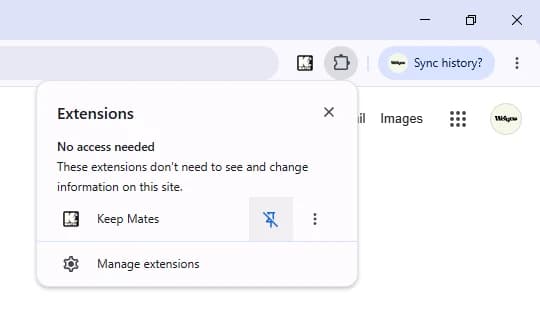
Pin Keep Mates from the Chrome extensions menu so the extension stays visible in the toolbar. - 3
Click the pin icon so it stays one click away in your toolbar.
Open the dashboard and understand the library
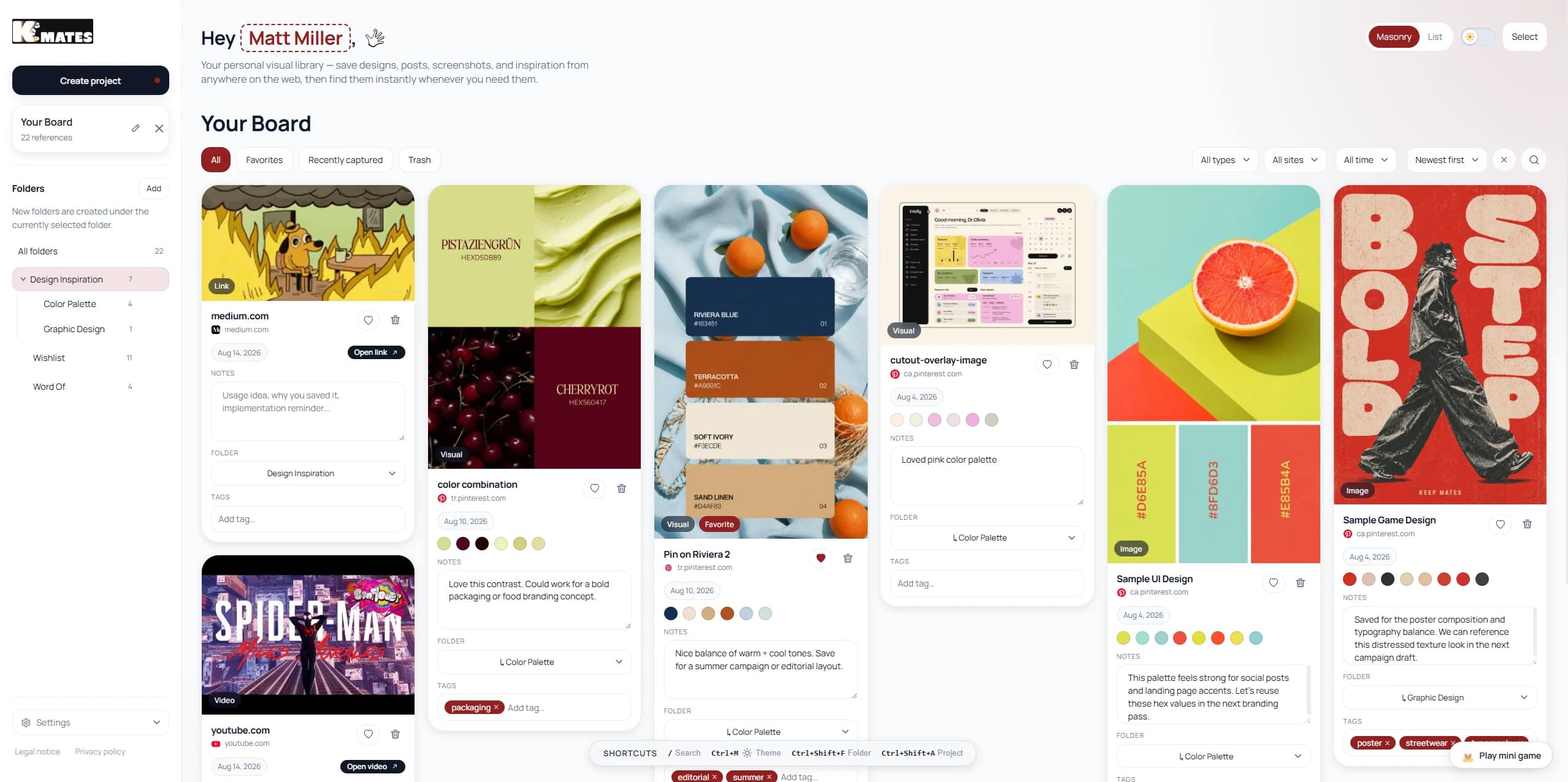
Once the extension is installed, open Keep Mates and take a quick look at the dashboard. This is where saved references, folders, filters, and project structure come together.
The dashboard is designed to help you recognize what you saved visually, not just search through a long list of titles and URLs.
Save your first link reference from a product page
A good first test is to save a real product or page you may want to revisit later. This works especially well for shopping, research, references, or pages where the full destination matters more than one isolated image.
On pages like this, Save as link reference is the better option because you are saving the page itself, not just the visible product photo.
- 1
Open the product page, article, or useful page you want to keep.
- 2
Right-click the image or page area and open the Keep Mates submenu in the browser context menu.
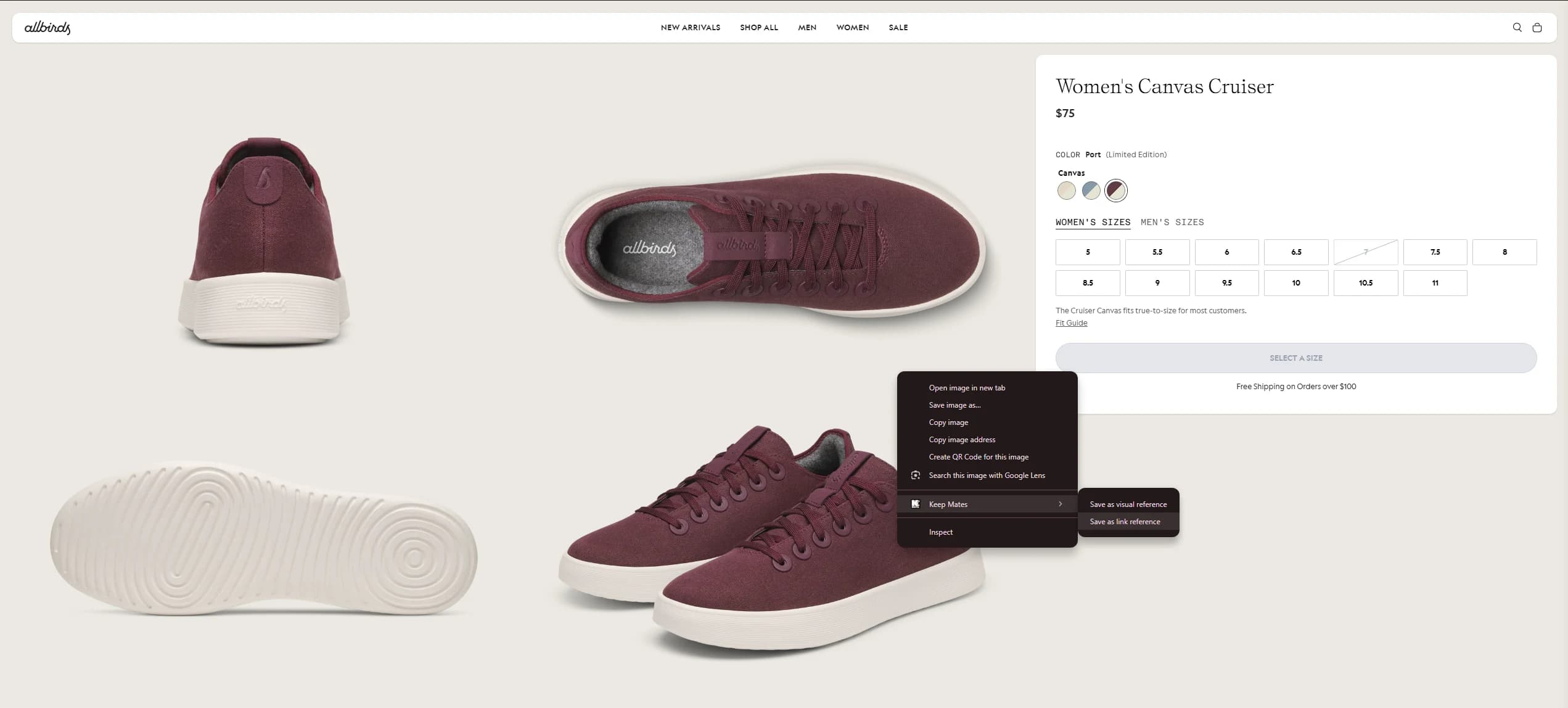
Use Save as link reference when the full product page or destination is what you want to reopen later. - 3
Choose Save as link reference to save the full page as a reusable reference.
Pro tip: Use Save as visual reference instead when the image itself matters more than the page behind it.